What Are Telegram Mini Apps? A Beginner's Guide
Telegram Mini Apps are full web apps that open inside Telegram. Instead of sending people to a website, you give them a button, and your shop, game, dashboard or booking tool opens right in the chat, already knowing who they are. This guide explains what Mini Apps are, how they work, the seven ways to launch one, how to build a first version and how to keep your users safe.
- A Mini App is an ordinary web page (HTML, CSS and JavaScript) that Telegram opens in a built-in window and connects to the user's account.
- Every Mini App belongs to a bot, and you can launch it in seven different ways, from a profile button to a direct link.
- Always validate the signed
initDataon your server. Anything read in the browser can be faked. - Mini Apps can take payments, including with Telegram Stars, and bots that accept Stars may be featured in Telegram's Mini App Store.
What is a Telegram Mini App?
Telegram's own description is that Mini Apps let developers use JavaScript to build interfaces that launch inside Telegram and can replace a website entirely. Technically, a Mini App is a web page served over HTTPS that Telegram loads in an in-app window. When the page includes Telegram's telegram-web-app.js script, it gets a window.Telegram.WebApp object with the user's details, the current theme, native buttons, payments and more. You will still see the older name "Web App" in code, but the product is called Mini Apps.
That is why they feel different from a link to a website. There is no sign-up form, because Telegram tells your app who the user is. There is no checkout redirect, because payments run inside Telegram. And the app follows the user's light or dark theme automatically.
Mini App vs bot: what is the difference?
A bot lives in the chat. People talk to it with commands, buttons and messages, which is perfect for quick answers, alerts and simple flows. A Mini App gives you a full screen of your own design, which is what you need for a catalogue, a game board, a calendar or a dashboard. Most real products use both: the bot handles conversation and notifications, and the Mini App handles anything that needs a proper interface.
The two are tied together. A Mini App is always opened through a bot, whether from a button, the menu or a link that contains the bot's username. So the first step is the same as for any bot project: create a Telegram bot. To see what developers have shipped so far, browse the Kiver directory.
How a Mini App works
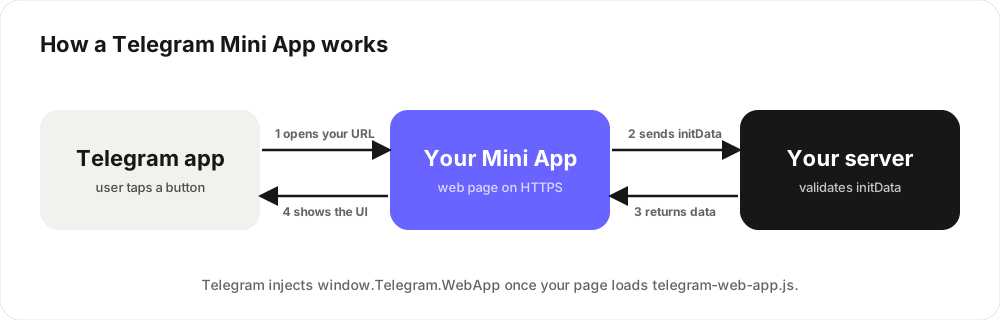
When a user taps a button that points to your app, Telegram opens your HTTPS page and passes it signed launch data called initData. Your page can read it in the browser to greet the user, but the signature is what lets your server confirm the data really came from Telegram. A simple app with no accounts or stored data can run entirely on a static host. Anything that saves progress, orders or balances needs a back end.
What Mini Apps can do
- Sign users in without passwords. The user's ID, name, username and language arrive in
initData, signed by Telegram. - Match Telegram's look. Theme colours are exposed as CSS variables such as
var(--tg-theme-bg-color), so dark mode works with no extra effort. - Take payments. Use payment providers (Google Pay and Apple Pay work out of the box) or Telegram Stars, including Stars subscriptions with multiple tiers.
- Use native controls. A main button at the bottom, a back button, native popups and haptic feedback.
- Go full screen, add a home screen shortcut and share to chats or stories.
- Store data on the device. Up to 5 MB per user in device storage, plus a secure storage for tokens that uses the iOS Keychain and Android Keystore. Cloud storage holds up to 1,024 items per user.
- Ask for permissions. Location, biometrics, a phone number or the right to message the user are each requested through a native Telegram dialog.
Newer features need a recent Telegram app, so check Telegram.WebApp.isVersionAtLeast() before relying on one.
Seven ways to launch a Mini App
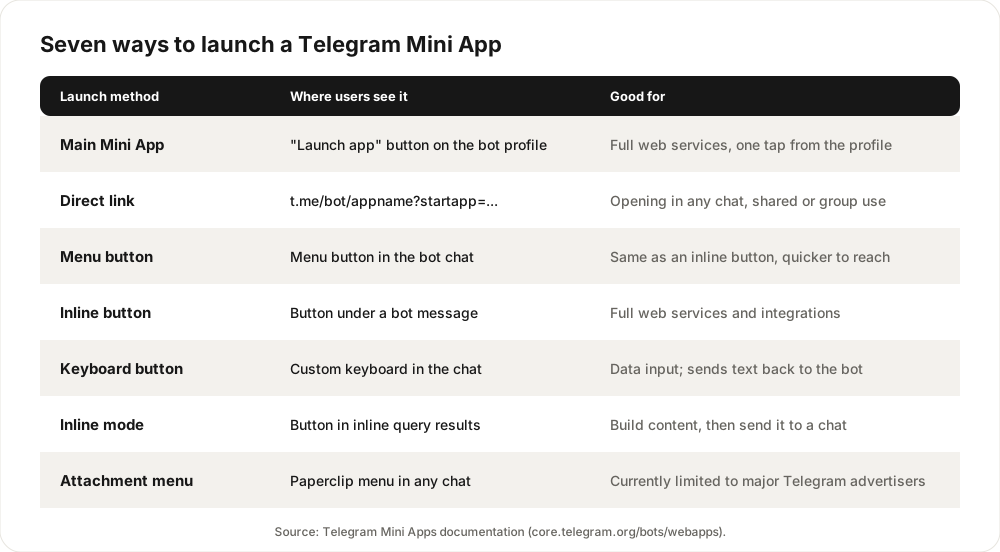
For most new projects, start with the main Mini App, which you set up in BotFather. It adds a Launch app button and media previews to the bot's profile, and bots with a main Mini App appear in the Apps tab of Telegram search for people who have opened them. A direct link such as t.me/yourbot/appname?startapp=invite123 opens the app in any chat and passes the startapp value to your page, which is handy for deep links and referral codes. By default these open full screen, and adding mode=compact to the link opens them at half height.
One limit to know about: Mini Apps opened from a direct link or from inline mode cannot read the chat or send messages on the user's behalf. The attachment menu is currently limited to major advertisers on the Telegram Ad Platform, although any bot can use it on Telegram's test server.
How to build your first Mini App
- Create a bot. Message @BotFather, send
/newbotand keep the token private. - Build the page. Plain HTML works, and so do React, Vue and Svelte. Add Telegram's script in the
head, before your other scripts. - Host it on HTTPS. Any static host will do, such as Vercel, Netlify, Cloudflare Pages or GitHub Pages. Telegram also offers Serverless, which can run your bot's code, a database and your Mini App files on Telegram's own infrastructure. It is new, so read its documentation for current limits.
- Connect it to your bot. In BotFather, open /mybots, choose your bot, then Bot Settings, Configure Mini App, Enable Mini App, and paste your URL. Or set the menu button with
/setmenubutton, or send an inline button like the one below.
Here is a complete first page. It tells Telegram the app is ready, expands it and shows a native button:
<script src="https://telegram.org/js/telegram-web-app.js?64"></script>
<script>
  const tg = window.Telegram.WebApp;
  tg.ready();   // hide Telegram's loading placeholder
  tg.expand();  // use the full available height

  const user = tg.initDataUnsafe.user;  // fine for display, never for trust
  document.body.textContent = "Hello, " + (user ? user.first_name : "there") + "!";

  tg.MainButton.setText("Continue").show();
  tg.MainButton.onClick(() => tg.close());
</script>
To open the app from a message, send an inline keyboard button of type web_app with the Bot API's sendMessage method:
{
  "chat_id": 123456789,
  "text": "Open the app:",
  "reply_markup": {
    "inline_keyboard": [[
      { "text": "Open app", "web_app": { "url": "https://your-app.example.com" } }
    ]]
  }
}
Then open your bot in Telegram and tap the button. Telegram documents debugging tools for Mini Apps on desktop, Android and iOS, so you can inspect your page while it runs inside the app.
Validate users on your server
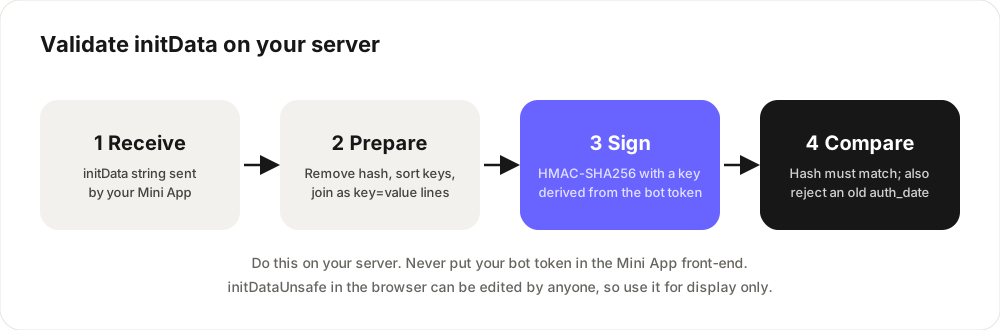
This is the step beginners skip, and it is the one that matters most. initDataUnsafe in the browser is just a JavaScript object, so anyone can edit it. Never use it to decide who someone is or what they own. Instead, send the raw initData string to your server with each request and verify its signature, following the official validation steps. In Node.js it looks like this:
import { createHmac, timingSafeEqual } from "node:crypto";

export function isValidInitData(initData, botToken, maxAgeSeconds = 3600) {
  const params = new URLSearchParams(initData);
  const hash = params.get("hash");
  if (!hash) return false;
  params.delete("hash");

  const dataCheckString = [...params.entries()]
    .sort(([a], [b]) => (a < b ? -1 : a > b ? 1 : 0))
    .map(([key, value]) => `${key}=${value}`)
    .join("\n");

  const secretKey = createHmac("sha256", "WebAppData").update(botToken).digest();
  const expected = createHmac("sha256", secretKey).update(dataCheckString).digest();
  const received = Buffer.from(hash, "hex");
  if (received.length !== expected.length || !timingSafeEqual(received, expected)) return false;

  const ageSeconds = Date.now() / 1000 - Number(params.get("auth_date"));
  return ageSeconds >= 0 && ageSeconds <= maxAgeSeconds;
}
Two details matter. The bot token must stay on your server, never in the page. And the auth_date check stops someone replaying old launch data they captured earlier. Telegram also documents a way for third parties to verify the data without holding your bot token. If you use Telegram Serverless, its endpoints receive init data that the platform has already verified.
Make it feel like part of Telegram
Telegram publishes design guidelines, and following them is the cheapest way to make a Mini App feel trustworthy:
- Design for phones first, since that is where most people will open it.
- Use the theme variables Telegram provides instead of fixed colours.
- Respect the safe area insets (
var(--tg-safe-area-inset-top)and friends), especially in full-screen mode. - Reuse native elements such as the main button, popups and haptics rather than rebuilding them.
- Keep animations smooth and light. Telegram passes a device performance class to Android apps so you can tone down effects on slower phones.
- Label inputs and images for accessibility.
How Mini Apps make money
Mini Apps can charge through payment providers or through Telegram Stars, and digital goods sold inside bots and Mini Apps generally use Stars. Stars also support subscriptions with several tiers. According to Telegram, successful bots that enable a main Mini App and accept Stars may be featured in the Mini App Store, so good previews and a polished design help twice. For the business models behind this, see our guide to making money on Telegram.
Mini App safety tips
A Mini App is a web page run by a third party, so treat it like any website you open from a chat.
If you use Mini Apps
- Check who made it. Open the bot's profile and read the description, and watch for lookalike bots that copy a popular name.
- Never type your seed phrase, Telegram login code or two-step password into a Mini App.
- Read permission dialogs. Location, phone number, biometrics and permission to message you are asked for through native Telegram popups. Say no if the reason is not obvious.
- Walk away from anything that promises guaranteed profit or asks for a deposit to "unlock" earnings, and use Telegram's Report option.
If you build Mini Apps
- Validate
initDataon the server and keep the bot token out of your front end. - Ask for a permission only at the moment a feature needs it, and explain why first.
- Collect the minimum data you need and publish a short privacy policy.
- Keep third-party scripts to a minimum. Any script on your page can see whatever the page sees.
Your next step
Start small: one screen, one job, a validated login. Once it works, list your bot or Mini App on Kiver so people browsing the directory can find it, or look through the directory for ideas and for apps worth learning from.
Frequently asked questions
What is a Telegram Mini App?
A Telegram Mini App is a web app built with HTML, CSS and JavaScript that opens inside Telegram. It can sign users in with their Telegram account, take payments and follow the app's theme, and it can replace a website for many use cases.
Do I need a bot to make a Mini App?
Yes. Every Mini App is launched through a bot, whether from a profile button, the menu button, an inline button or a direct link that contains the bot's username.
Do I need to know how to code to build one?
You need web basics (HTML, CSS and JavaScript) for the front end, plus a back end if you store data. No-code builders exist, but check what user data they receive and how they handle it.
Is it free to create a Telegram Mini App?
Creating the bot and registering the Mini App costs nothing. Your main cost is hosting, which can start on a free tier of a static host and grows with traffic and back-end needs.
Can a Mini App read my Telegram messages?
No. A Mini App does not get to read your chats. It receives basic account details such as your ID, name, username and language, and it can ask permission through a native Telegram dialog for more, such as your phone number or the right to message you.
How is a Mini App different from a normal website?
A Mini App opens inside Telegram, knows who the user is through signed launch data, matches the app's theme and can use native features such as payments, haptics and a main button. A website has to rebuild all of that itself.